Shine Login Help
Common issues can often be resolved by following the steps below!
Were you directed here by a Dupaco technical support specialist?
If so, please click below to continue your remote support session.
Note: Remote support is only available when working directly with a Dupaco Technical Support Specialist.
Step 1: Check extensions and security settings
Browser extensions, security software and privacy settings can sometimes block essential parts of Shine Online Banking, causing login issues. The good news? A quick review of your settings usually fixes them!
Here are a few common tools that can block the scripts and cookies we need to keep your account secure:
-
Ad blockers (like uBlock Origin, AdBlock, Ghostery, Disconnect and NoScript)
-
Security software (such as Webroot, Microsoft Defender, Norton Antivirus, McAfee, Bitdefender and Malwarebytes)
-
VPNs (including ExpressVPN and NordVPN)
-
Privacy-focused browser settings (found in Chrome, Safari, Edge, Firefox, Brave and DuckDuckGo)
If you’re using any of the tools mentioned above—especially ad blockers—please whitelist the following domains, which are necessary for us to run important security checks required for login:
-
dupaco.com
-
iovation.com
Please note that we don’t use this information to track you across the web or to sell your data. These checks are only in place to help confirm that your login attempt is legitimate and protect your account from unauthorized access and fraud.
-
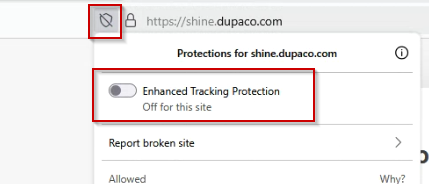
Extra tip for Firefox users
Turn off Enhanced Tracking Protection for shine.dupaco.com.

-
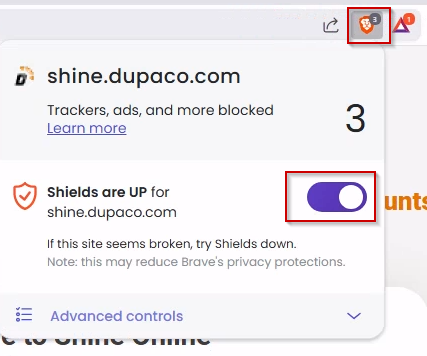
Extra tip for Brave users
Turn off Brave Shields for shine.dupaco.com.

-
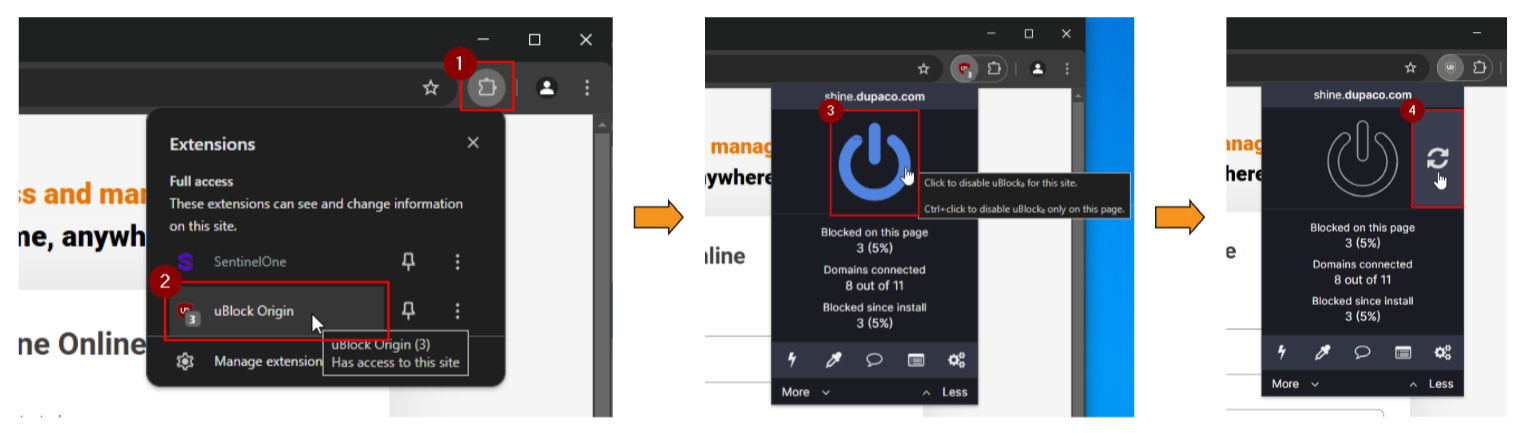
Extra tip for uBlock Origin users
Follow these steps to disable your ad blocker for Shine Online banking.

Step 2: Check your network type
Trying to log in to Shine Online Banking from a work computer, hotel Wi-Fi, university network or even someone else’s wi-fi? Networks like these often have strict security settings that can block the tools we use to keep your account secure, which can cause login issues.
Here are some common examples:
-
Work computers and corporate networks: Your organization’s firewall or security settings may restrict access to online banking sites.
-
Public Wi-Fi: Hotel, airport, coffee shop and university networks often block financial services for added security.
-
Shared or guest Wi-Fi: Sometimes a friend or family member’s router settings may interfere with secure login features.
And here’s what you can do:
-
If you’re on a work computer, reach out to your IT department — they may be able to allow access to Shine Online Banking.
-
If you’re on public Wi-Fi or a shared network, try switching to a trusted connection (like your home Wi-Fi or mobile data) for better results.
(Hint: Using a trusted and secure network provides the best Shine Online Banking experience!)
Step 3: Enable third-party cookies
Some important Shine Online Banking features—such as bill pay, check ordering and business services—require third-party cookies to function correctly. When these cookies are blocked, you may encounter issues completing certain actions and functions in Shine.
Here’s how to adjust your browser settings to enable third-party cookies:
-
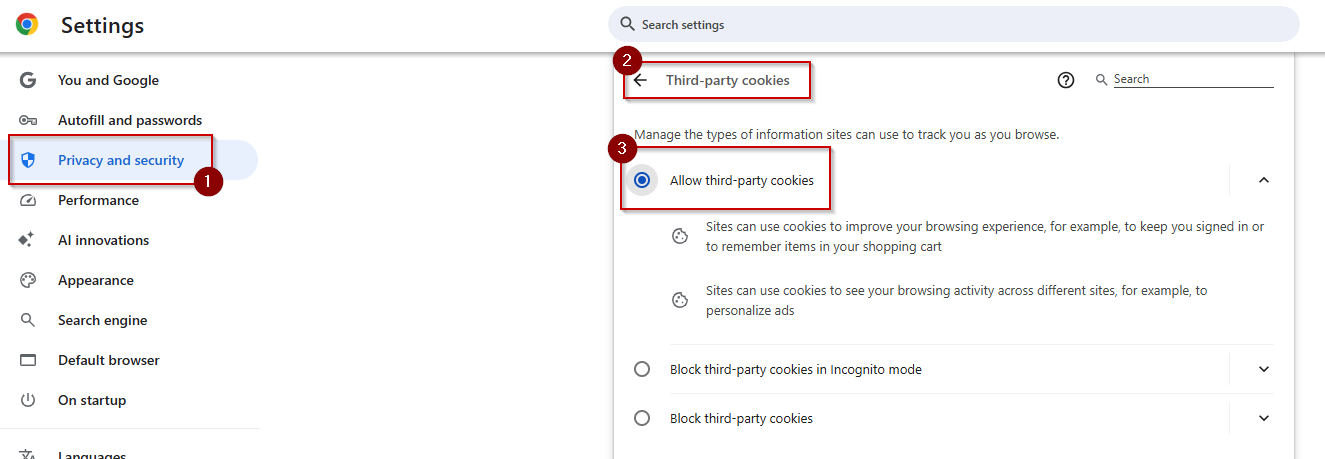
Chrome
-
Click the three-dot menu in the upper-right corner.
-
Go to Settings → Privacy and security → Third-party cookies.
-
Select Allow third-party cookies.
-
(Optional) Clear old data: Go to Privacy and security → Clear browsing data → check Cookies and other site data, then click Clear data.

-
-
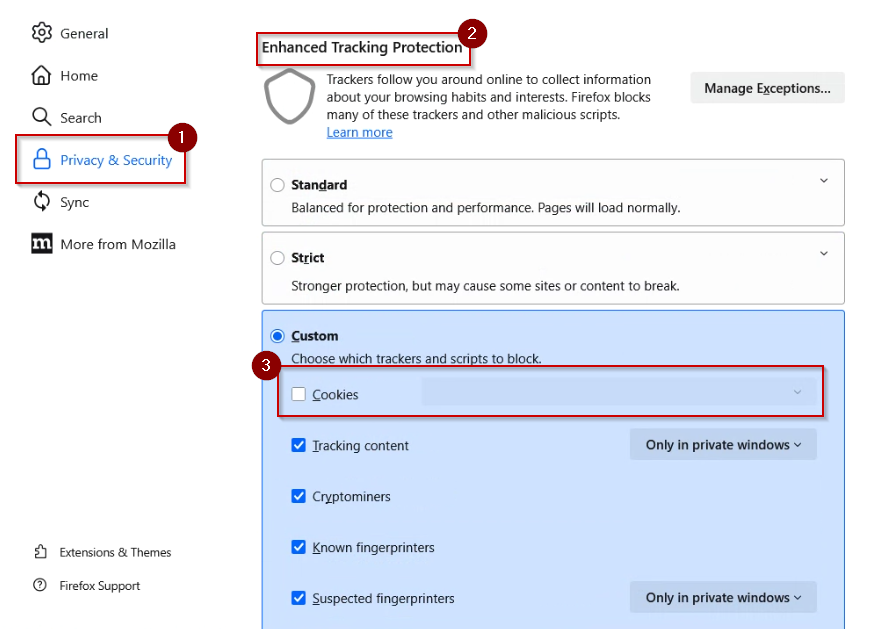
Firefox
-
Click the menu button and go to Settings.
-
Go to Privacy & Security.
-
Under Enhanced Tracking Protection, choose Custom.
-
Make sure Cookies is not set to block all third-party cookies.
-
Under Cookies and Site Data, click Clear Data, then click Clear.

-
-
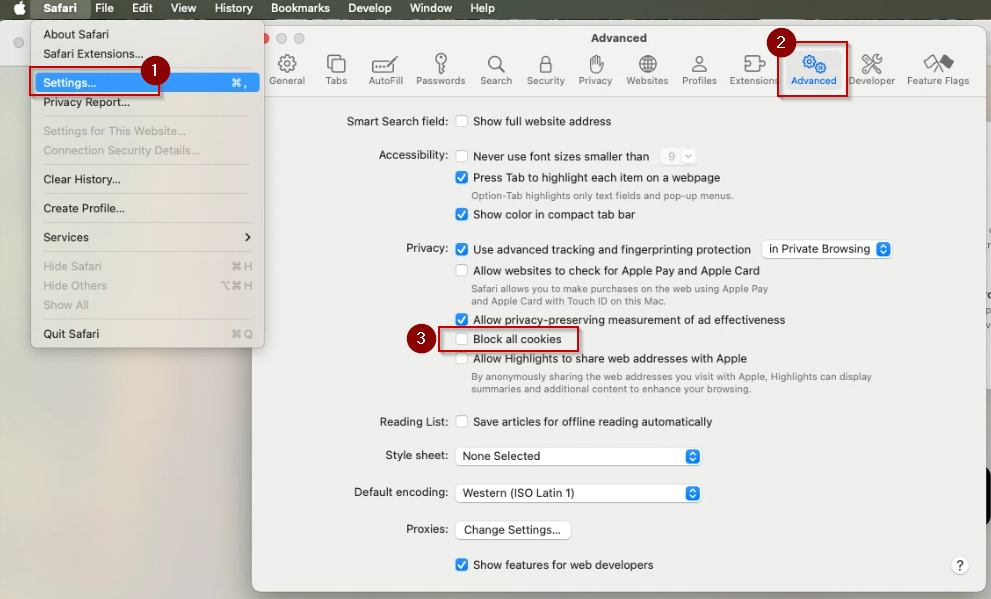
Safari (macOS)
-
Go to Safari → Settings.
-
Click the Advanced tab.
-
Uncheck Block all cookies.
-
Click Manage Website Data → Remove All to clear older cookie settings.

-
-
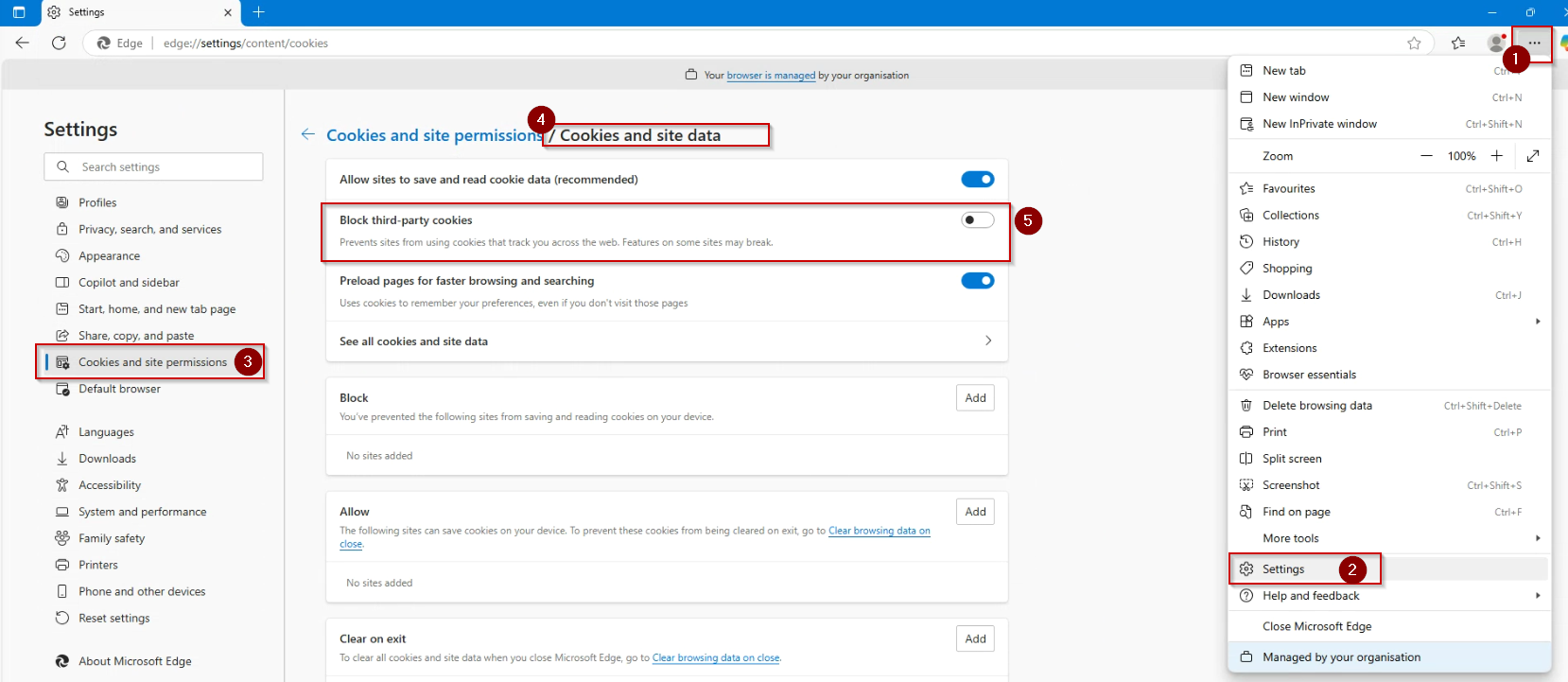
Edge
-
Click the three-dot menu in the upper-right corner.
-
Go to Settings.
-
Click on Cookies and site permissions from the left-hand sidebar.
-
Click Cookies and site data.
-
Turn off Block third-party cookies.
-
(Optional) Clear old data: From the same menu, select Clear browsing data → Cookies and other site data.
Hint: You don’t need to allow third-party cookies for all sites — just ensure Shine can use them so these features work smoothly.

-
Step 4: Enable JavaScript
Shine Online Banking requires JavaScript to display pages and run interactive features. If JavaScript is disabled in your browser, you may not be able to log in or use Shine as intended.
Here’s how to check and enable JavaScript in your browser:
-
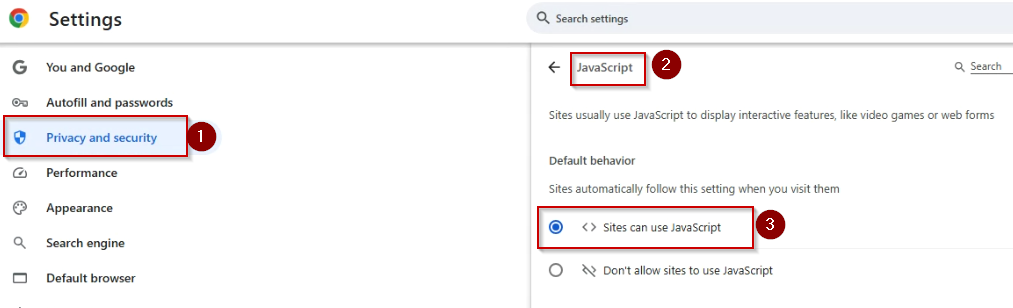
Chrome
-
Go to the three-dot menu → Settings.
-
Navigate to Privacy and security → Site settings → JavaScript.
-
Select Sites can use JavaScript.

-
-
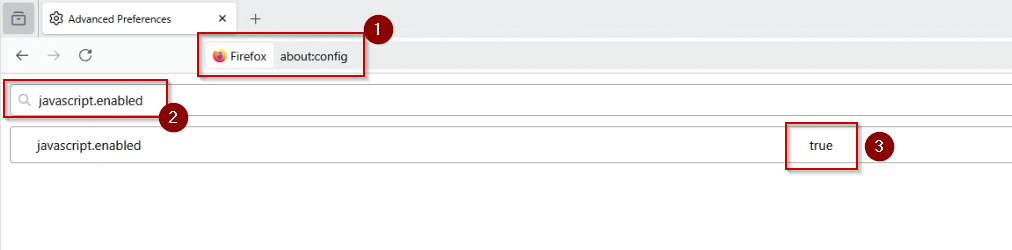
Firefox
-
Type about:config in the address bar and press Enter.
-
Accept any warning prompt.
-
Search for javascript.enabled.
-
Make sure it is set to true.

-
-
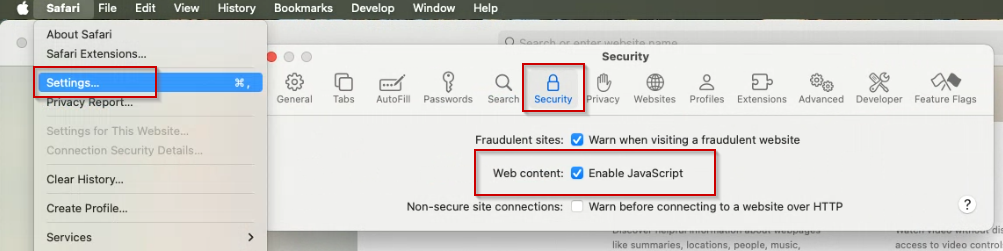
Safari (macOS)
-
Go to Safari → Settings.
-
Click the Security tab.
-
Make sure Enable JavaScript is checked.

-
-
Edge
-
Click the three-dot menu → Settings.
-
Go to Cookies and site permissions.
-
Go to All permissions and scroll down to JavaScript.
-
Make sure Allowed (recommended) is selected.

-
Still having trouble?
If following those four steps didn’t resolve your issue, please call us at 800-373-7600 for further assistance.